Ivalice Moogle VRChat VR Avatar (PC & Quest) (CVR Included!)
Added 2022-08-28 05:39:35 +0000 UTC
Pre-set-up Unity Package for VRC and CVR, Textures (as well as their .psd and .spp files), Model FBX and Blender file.
Ivalice Moogle
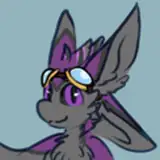
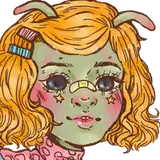
Adorably fluffy Ivalice Moogles are finally here! SDK3 features, physbones, FBT compatible, and Quest compatible, this avatar base something for everyone!
This model includes....
- Full visemes
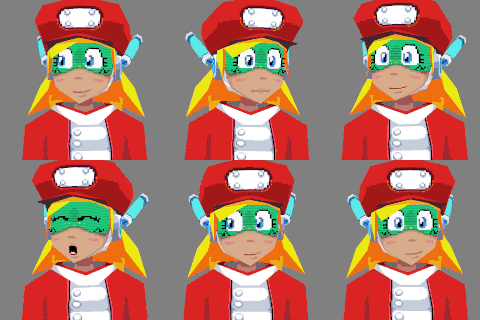
- Multiple dynamic expressions
- Quest compatibility
- FBT support
- 2 alternate textures
- Puppet controls for your Pom
- Wing and Tail idle animations
- Pre-set up scene for very quick and easy setup in both VRChat and Chillout VR
- Both .PSD and Substance files
Original Model created by Estefanoida, commercial rights held by Kazun!
Be sure to check out Estefanoida's Gumroad for more models from her!
Instructions (VRChat)
PC:
- Make a new Unity (2019.4.31f1) project.
- Import the VRchat Avatars SDK3 into your new project (You can download it here). It's important to do this before adding your avatar!
- Import the most recent Poiyomi package (You can download that here).
- Import the Ivalice_Moogle_Base_VRC Unity Package.
- Open the VRC SDK, sign in, build & upload!
- If you'd like to edit the model such as changing the texture, open the Moogle/Scenes/Moogle template scene!
Quest:
- Make a new Unity (2019.4.31f1) project.
- Import the VRchat Avatars SDK3 into your new project (You can download it here). It's important to do this before adding your avatar!
- Import the Ivalice_Moogle_Base_VRC Unity Package.
- Open the Moogle/Scenes/Moogle template scene.
- Navigate to the Moogle/Materials folder.
- Drag either the "Moogle body Quest" or "Moogle Cream body Quest" on to both the body and hair of the model. You must use one of these quest-compatible materials, or you won't be able to upload on Quest!
- Open the VRC SDK and sign in.
- Under the "Builder" tab, select "Switch Build Target to Android" and wait for the process to complete.
- Click Build & Publish for Android, and you're done!
Instructions (Chillout VR)
- Make a new Unity (2019.4.31f1) project.
- Import the Chillout VR CCK into your new project (You can download it here). It's important to do steps 2 and 3 before adding your avatar!
- Import the Dynamic Bones asset into your project. Dynamic Bones are a paid asset, so I can't provide it for you, sorry! You can get it on the Unity asset store. Dynamic Bones are not required to use the avatar, however if you do not import Dynamic Bones into your project, there will be missing scripts that you must remove. You can just delete the "Dynamics" object under the Moogle CCK (DynBones) object to quickly remove all dynamic bone scripts.
- Import the most recent Poiyomi package (You can download that here).
- Import the Ivalice_Moogle_Base_CVR Unity Package.
- Open the Moogle/Scenes/Moogle template scene. Textures and other model edits can also be done here.
- Open the CVR Control Panel in Unity, sign in, build & upload!
Rules
You may:
- Use this avatar in games like NeosVR, VRchat, CVR, etc
- Use for vtubing and streaming
- Use for 3d rendering
- Personally retexture or modify this avatar
- Take commissions to retexture/modify this avatar or commission others to retexture/modify the avatar (as long as you have purchased the files first)
- Use parts of this model on your own private avatar
You may NOT:
- Redistribute the assets for this model, modified or original
- Sell the assets for this model
- Use the assets for commercial purposes (such as being included in a game)
- Claim ownership over the model
- Upload public versions of this model or any of its assets (included but not limited to social platforms like Chillout VR or VRchat)
Have Issues or Questions?
Join the Discord to report bugs, see bugs that have already been reported, and hear about updates as soon as they're posted!